Calculate Formation Energy
This tutorial explains how to calculate the formation energy of a compound material using Density Functional Theory (DFT) with Quantum ESPRESSO.
Quantum ESPRESSO version
This tutorial applies to Quantum ESPRESSO versions 5.2.1, 5.4.0, 6.0.0, 6.3, and later.
Prerequisites
The formation energy of a compound is calculated with respect to its constituent elements in their standard states. For the workflow to succeed, the elemental total energies must already exist on the platform.
Before running the formation energy workflow for a compound (e.g., Silicon Carbide, SiC), you must first calculate the Total Energy for each of its constituent elements:
1. Get Elemental Materials: Navigate to your Materials collection and import the relevant elemental reference materials from Standata, saving them to your account.
2. Calculate Total Energy: For each elemental material, run a standard SCF Total Energy job on it.
- Crucial: The precision settings (e.g., KPPRA, kinetic energy cutoffs) used for the elements must exactly match the settings you will use for the compound material's calculation.
- Crucial: Ensure you note the property Group (e.g., qe:dft:gga:pbe) under which the elemental Total Energies were calculated, as you will need to specify this group in the Formation Energy workflow.
1. Create a job
Open the Job Designer to create a new job.
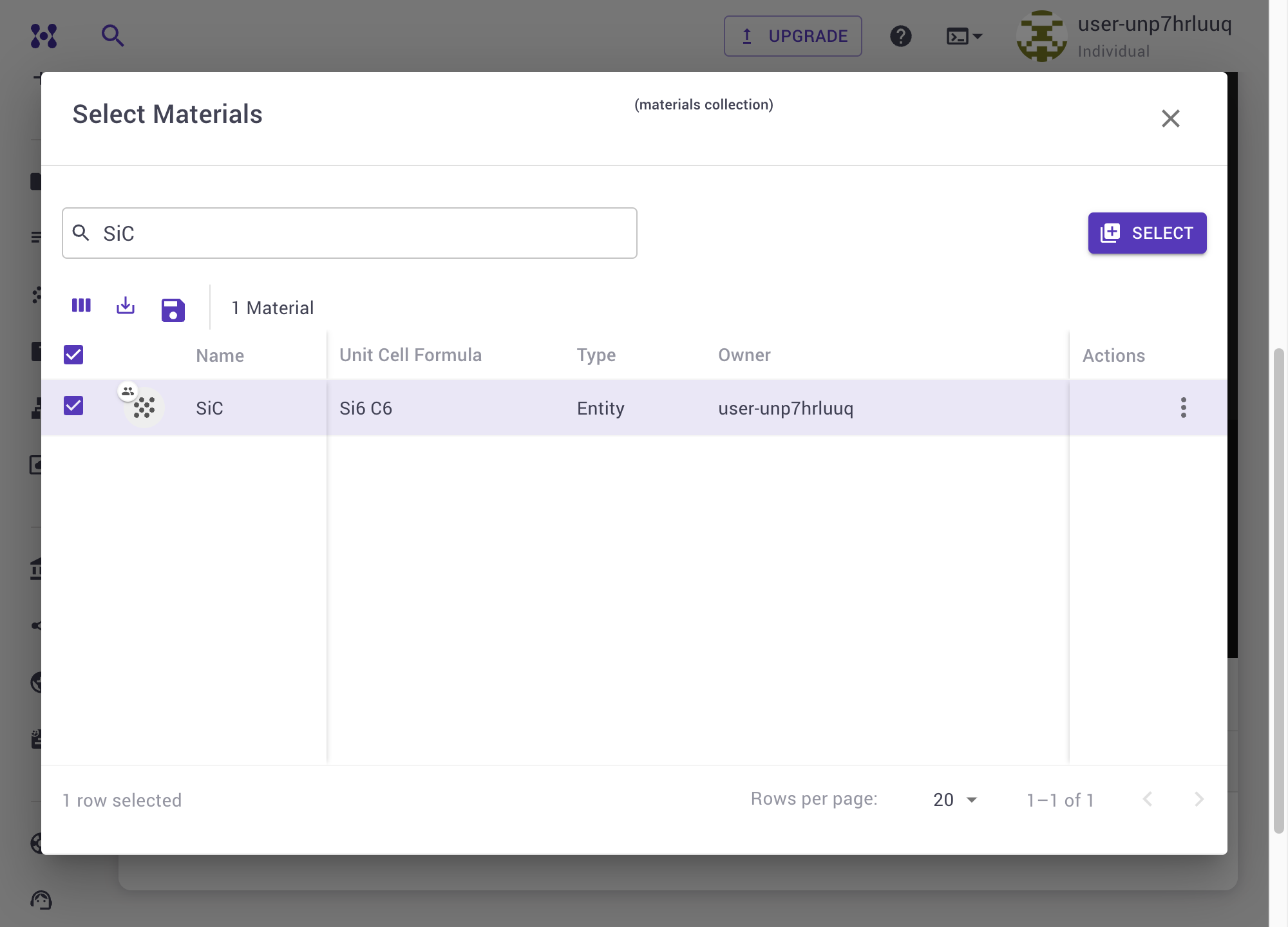
Under the Choose A Material section, select the compound material for which you want to calculate the formation energy. You can import materials from external databases or upload them directly.
2. Understand the workflow structure
Expand to view unit details
The workflow is composed of the following key units:
pw_scf (in the Compute Total Energy subworkflow) — Performs a self-consistent field (SCF) calculation to determine the total energy of the compound material.
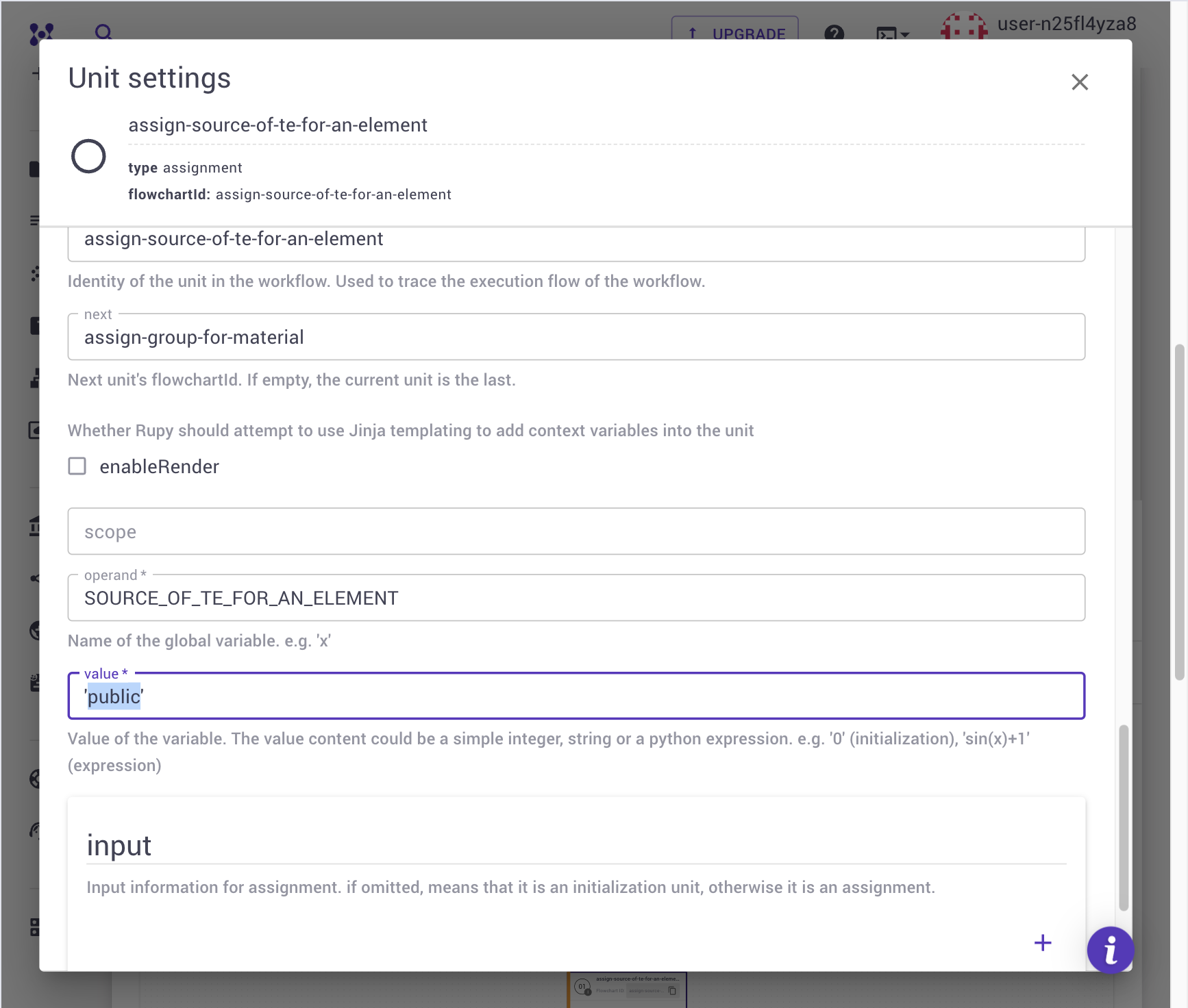
assign-source-of-te-for-an-element / assign-group-for-material (in the Resolve Total Energies for Elemental Materials subworkflow) — Set which elemental reference records to search for: the Source is the record's owner (public by default, my_account, or curators), and the Group is the computational-method slug (e.g., qe:dft:gga:pbe) the elemental Total Energies were calculated under.
init-element-index / check-te-for-elemental-materials-loop / assign-current-element — A loop construct that iterates over each unique element present in the compound.
io-te-for-an-element — An I/O unit that queries the platform's REST API to retrieve the pre-calculated total_energy property for the current element's standard state reference material, filtered by the Group and Source set above, and sorts by precision to find the most appropriate reference value.
assign-formation-energy (in the Calculate Formation Energy subworkflow) — Uses Python logic to subtract the sum of the elemental reference energies (scaled by stoichiometry) from the compound's total energy, yielding the final formation energy.
3. Select the workflow
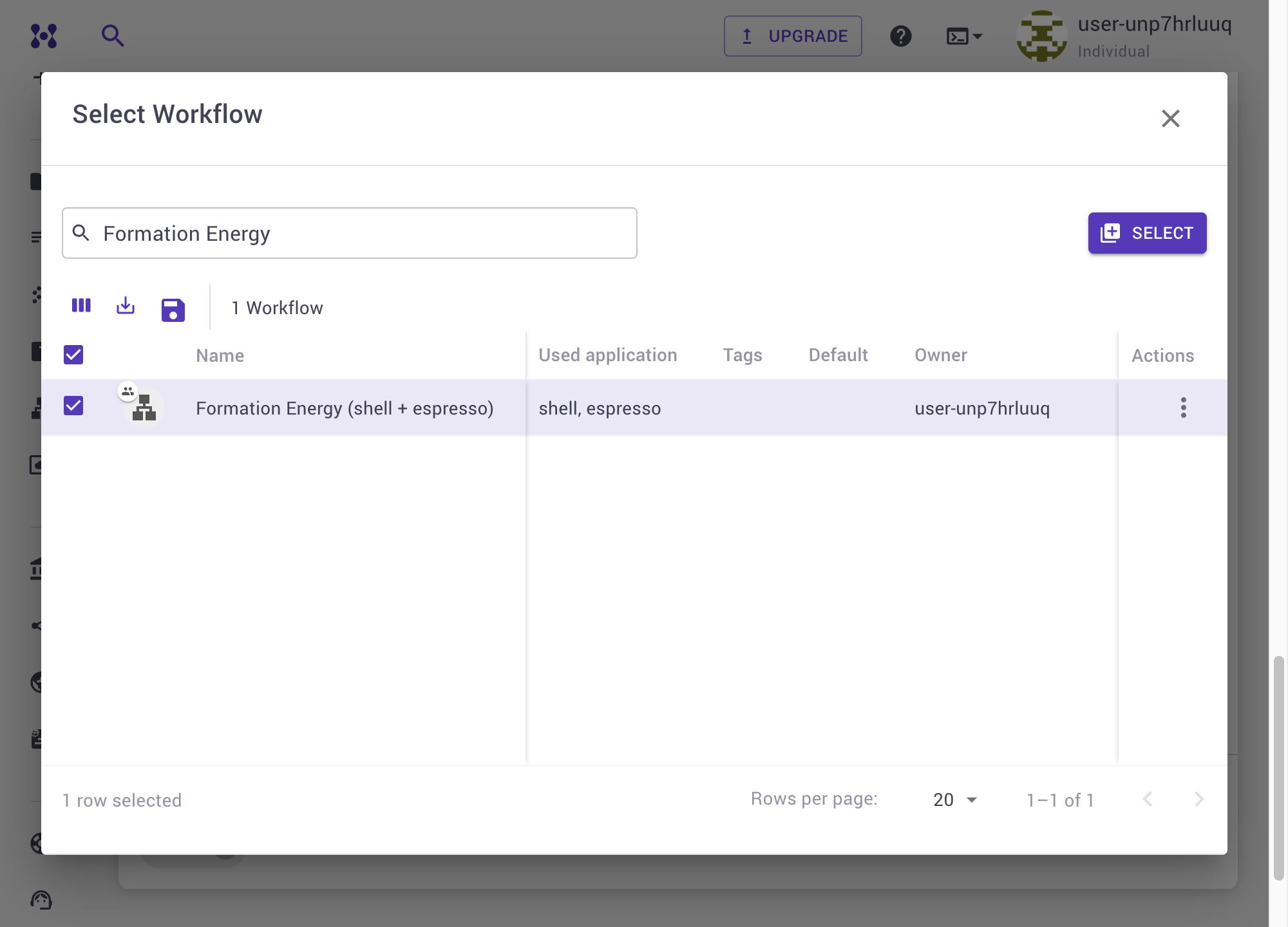
Workflows for calculating formation energy with Quantum ESPRESSO can be imported from the Workflows Bank into your account-owned collection.
In the Job Designer, select the Formation Energy workflow and add it to the job.
4. Set Group and Source of Properties
Inside the Resolve Total Energies for Elemental Materials subworkflow (not the earlier Get Elemental Materials subworkflow, which only resolves the elemental reference materials — not their total energies), switch to the Detailed view tab. There are two critical assignment units that must be configured correctly:
assign-source-of-te-for-an-element: This unit sets who owns the elemental Total Energy record to search for — 'public' by default, or 'my_account'/'curators' if you calculated the elemental references yourself or want curated results only. This is unrelated to Standata: Standata is only where the elemental reference materials (structures) come from; the Source setting is about who calculated the total energy property on those materials.

assign-group-for-material: This unit sets the property group (e.g., qe:dft:gga:pbe) to filter the elemental Total Energy results by computational method. The group selected here must match the property group of the elemental total energies you calculated previously.
5. Set parameters
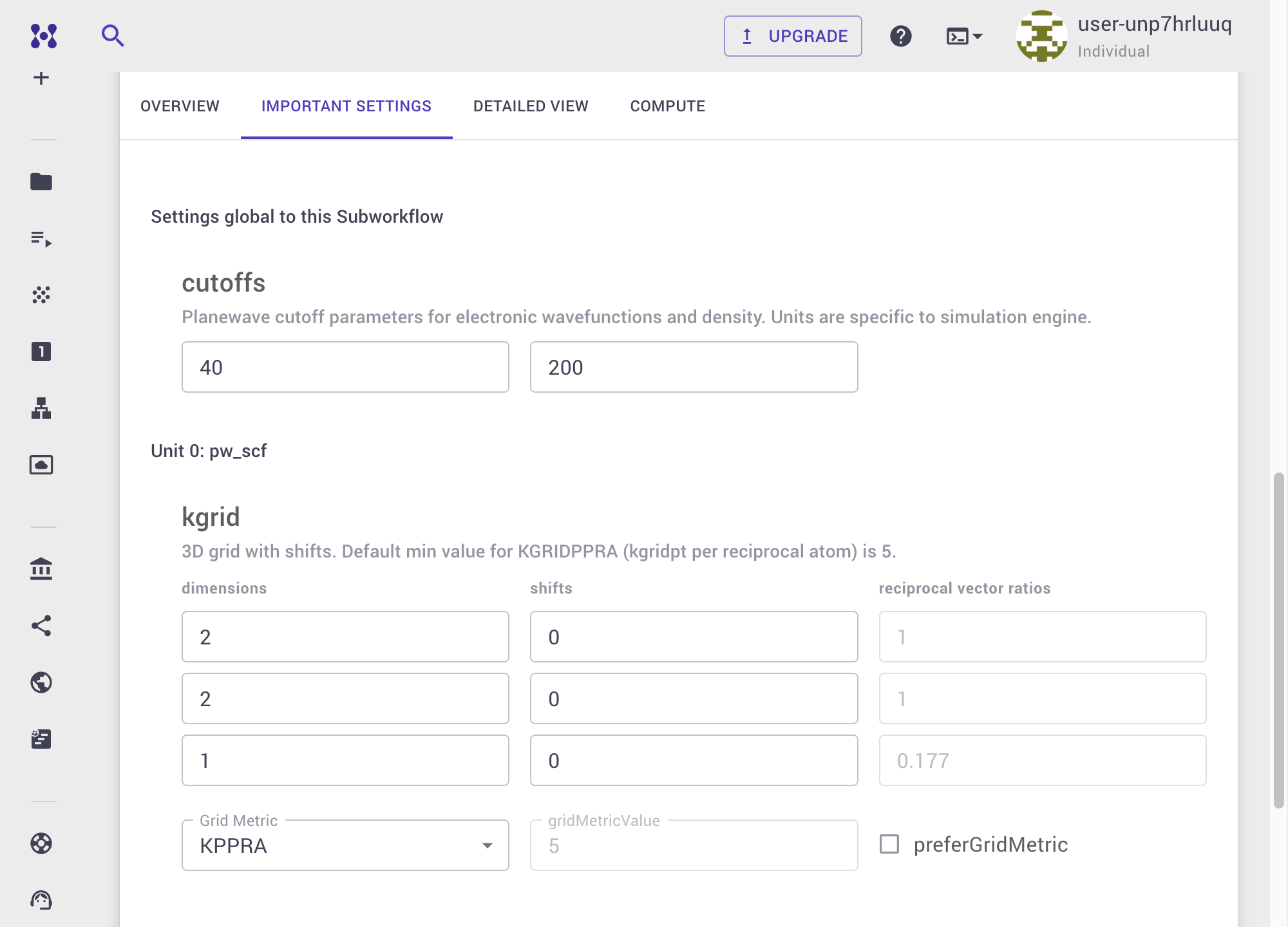
In the workflow unit settings, ensure the k-point grid is sufficiently dense for your desired accuracy. A high KPPRA (k-points per reciprocal atom) is typically required for accurate formation energies.
Precision Consistency
The precision settings (e.g., KPPRA, kinetic energy cutoff) used for the compound material's SCF calculation must match the precision settings used to calculate the elemental reference energies. The io-te-for-an-element unit does not verify this for you — it simply picks the highest-precision matching reference it finds, so a mismatch will silently produce an incorrect formation energy.
6. Submit the job
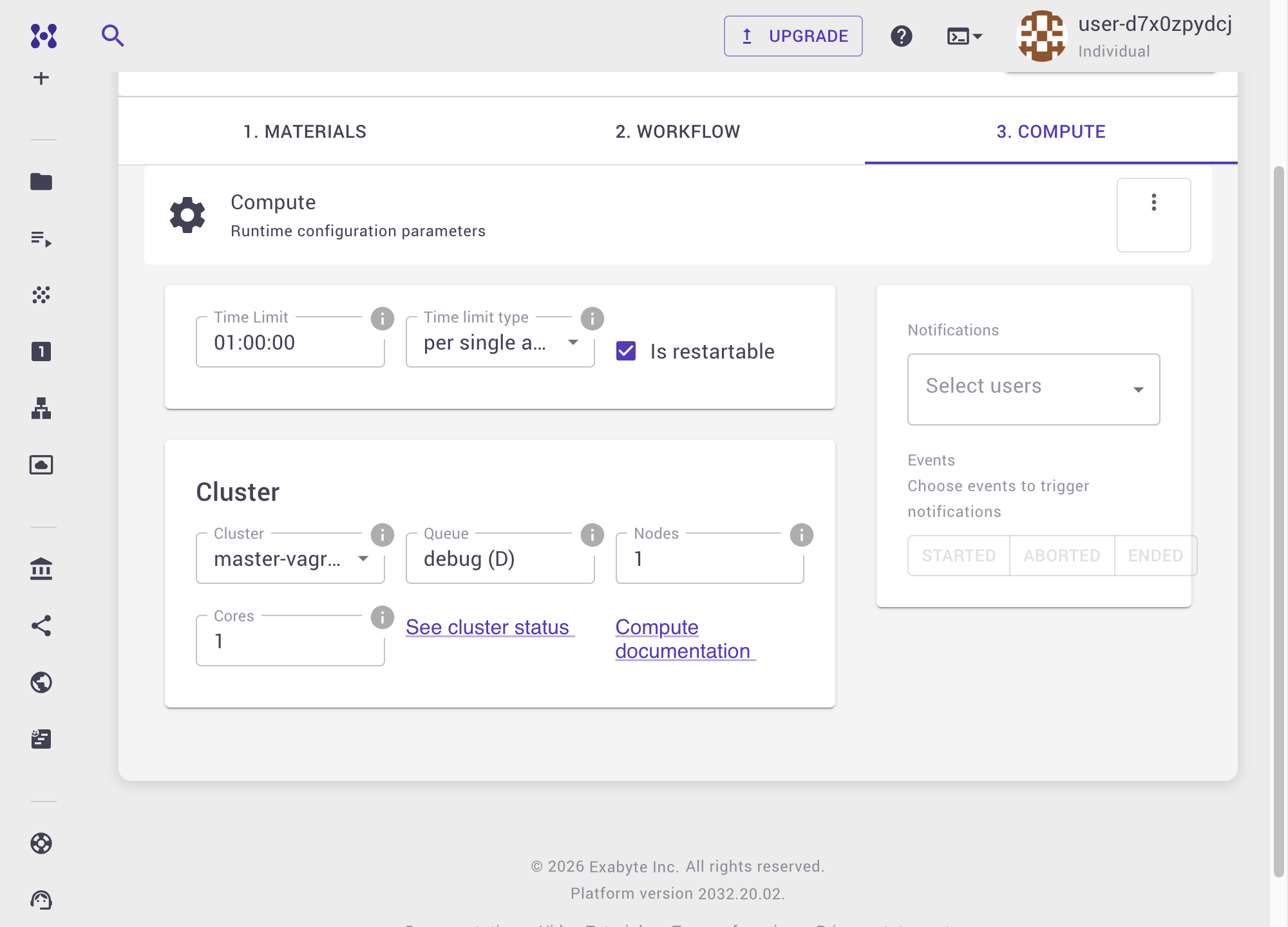
Once all parameters are set, navigate to the Compute tab to verify the compute resource allocation, then submit the job.
7. Examine the results
Once the job completes, navigate to the Results tab of the Job Viewer. The Formation Energy property will be displayed. More negative values indicate greater thermodynamic stability relative to the elemental standard states.